
 RENT A SERVERREPORT A SERVER
4Players GmbH is New Citizens official hosting partner, create expand and manage your server today...
New Citizen is currently in early access and is actively being developed in its alpha stage.
At present, New Citizen offers two types of servers: official servers, which are managed by Specpixel Entertainment, and community servers, which are primarily owned and operated by players. Community servers differ greatly from official servers in terms of gameplay experience, as server owners can tailor their server settings to create unique gameplay experiences. For example, players can choose to join a hardcore RP server or a more relaxed casual RP server, where starting money is set to a higher value than the default server settings. Official servers run on the default parameters and settings.
Creating a community server is a great way to experience the full potential of New Citizen. Players can exercise greater control over their server and create a customized gameplay experience for others using the New Citizen framework.
For those who prefer not to deal with the hassle of acquiring a dedicated machine or VPS and setting up a server, New Citizen has partnered with 4NetPlayers, a server hosting company that can quickly and efficiently set up and customize new servers.
Players can also choose to self-host their servers by downloading the server files from Steam or the New Citizen website. By hosting the server on their personal computer, private machine, or dedicated server, players can run their own server with minimal effort. A tutorial is available to guide players through the setup process, which can be completed in a matter of minutes.
This page outlines the guidelines that every server owner/operator is required to follow. Failure to comply with these rules may result in the blacklisting of your server.
Last updated: 13 March 2024
Base Hosting Policy:
1. Community Standards:
Respectful Behavior: Treat all players with respect and refrain from engaging in any form of harassment, discrimination, or bullying.Inappropriate Content: Do not share or create any content that is illegal, offensive, or inappropriate, including but not limited to explicit language, hate speech, or graphic imagery.Fair Gameplay: Maintain fair and balanced gameplay for all players. Do not use cheats, exploits, or other unfair advantages.
2. Server Content:
No Malicious Content: Do not host servers that contain malicious software, viruses, or other harmful content.Compliance with Laws: Ensure that all server content complies with applicable laws and regulations, including copyright and intellectual property laws.Age-Appropriate Content: Servers must not contain content that is unsuitable for the designated age rating of the game.
3. Player Safety:
Protect Player Privacy: Safeguard the privacy of players and refrain from sharing personal information without consent.
4. Reporting and Enforcement:
Reporting Violations: Players can report violations of the hosting policy through [business@specpixel.com].Enforcement Actions: Violations of the policy may result in warnings, temporary suspensions from hosting servers on our platform, depending on the severity of the offense.
5. Policy Updates:
Notification: We reserve the right to update or modify this policy at any time. Compliance: All server owners are responsible for reviewing and complying with the latest version of the policy.
6. Community Engagement:
Feedback: We value feedback from our community. If you have suggestions or concerns regarding the hosting policy, please reach out to us. Collaboration: We encourage collaboration and communication among server owners to foster a positive and inclusive community.
Thank you for being a part of the New Citizen community! By hosting a server, you play a crucial role in creating a fun and welcoming environment for all players.
In this guide, we will walk you through a 5-step process to establish a dedicated server for New Citizen. We'll cover everything from the initial setup to having a functional server that you can join and oversee for your community. Initially, we'll provide an overview of the essential steps to get your server online. Subsequently, we'll delve into the specifics of server management, including editing player data, assigning administrative privileges to specific users, and exploring various configuration options.
For running a dedicated server, we recommend utilizing either a VPS or a dedicated server situated near your location. It's worth noting that our servers implement a ping limiter for in-game joinings.
(1) How to install the latest server files
To obtain the most recent server files for New Citizen, it's essential to possess a copy of the game on Steam. After acquiring the game, navigate to your Steam library. Search for New Citizen, ensuring that your Steam filter is set to display tools. Locate the Steam application named (New Citizen Dedicated Servers) and download it. Be sure to update all the files, similar to the process for updating any other game on Steam.
(2) How to update the latest server files
Similar to updating any game on Steam, you'll notice an update button when a game is outdated. For every essential update we release for New Citizen, the corresponding server files will be updated accordingly. It is the responsibility of the server owner to ensure they are using the latest server files to prevent potential bugs or complete malfunctions of the server.
(3) Database setup/install
To set up the MySQL server on your VPS, it's crucial to download and install both the MySQL Server and MySQL Workbench. Please use the following link for the download: https://dev.mysql.com/downloads/windows/installer/8.0.html.
During the installation process, ensure that you select both MySQL Server and MySQL Workbench, along with Connector/C++.
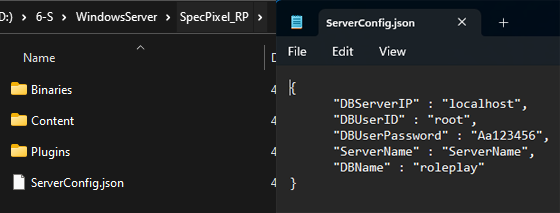
While installing MySQL Server, you'll be prompted to enter the user's name and password. The default user is 'root,' and the password set in the game is 'Aa123456.' Server settings can be configured in the ServerConfig.json file, located within the SpecPixel_RP folder.
As the game lacks the permission to create a database, it's necessary to manually create a database named "roleplay" (matching the name specified in the Server Config JSON file under the DBName field). To accomplish this in the Workbench, right-click on the Schemas panel, select "Create Schema," enter "roleplay" (not case-sensitive), click apply, and follow the wizard to complete the database creation process.
Upon uploading the server version to your VPS, generate a shortcut from the server executable file. Right-click on the shortcut and choose "Properties." In the target field, add two switches, namely -server and -log, to the end.
Initiating the server version of the game is straightforward using the shortcut, which seamlessly starts a Steam session. If you desire to customize the port, modify the shortcut by adding -port=XXXX to the end of the target field. For example, to designate port 18087, adjust the shortcut as follows: -server -log -port=18087.
(4) Server configuration
You are able to modify the server configuration file by directly accessing the serverconfig.json file located in the primary directory of the server files.
(5) Firewall (Important)
Setting up your server involves configuring specific ports to ensure smooth operation with Steam. Follow these steps to open the necessary ports on your router or firewall:
UDP Ports for Steam Operation:
Ensure the following UDP remote ports are open: 27015-27050. These ports are crucial for seamless communication with Steam.
HTTP and HTTPS Ports for Steam Login and Content Download:
To log into Steam and download content, open the following ports:
- HTTP (TCP remote port 80)
- HTTPS (TCP remote port 443)
Additional Rules for Specific Ports:
Add rules to grant access to the following ports for comprehensive functionality:
- Port 27015 (UDP and TCP)
- Port 7777 (UDP and TCP)
By configuring the firewall settings to allow traffic through these specified ports, you ensure that your server operates effectively with Steam.
In New Citizen, persistent player data is housed in the MySQL Workbench. We strongly advise editing a player's data row when they are offline and not connected to the server. If you prefer to modify player data in-game, please use the in-game administration menu.
Synced Player Data:
---------------------------------------------------------------------------------------------------------- Player transaction history with in-game money
(TransactionHistoryID)(BankAccount ID) (FromPlayerCode) (Ammount) (CurrentBalance) (TimeStamp) (Description) (Fee)
----------------------------------------------------------------------------------------------------------
- In-Game Bank Account
(BankAccountID) (PlayerCode) (Balance) (IsBlocked)
----------------------------------------------------------------------------------------------------------
- In-Game Accounts
(PlayerCode) (PlayerAccount) (AccountType) (JoinDate)
----------------------------------------------------------------------------------------------------------
- In-game Laws
(RuleID) (Content)
----------------------------------------------------------------------------------------------------------
- In-Game Bank Account
(BankAccountID) (PlayerCode) (Balance) (IsBlocked)
----------------------------------------------------------------------------------------------------------
- In-Game Accounts
(PlayerCode) (PlayerAccount) (AccountType) (JoinDate)
----------------------------------------------------------------------------------------------------------
- Player Identity
(PlayerCode) (FirstName) (LastName) (Birthdate) (Height) (Gender) (PlayerRole) (PoliceWhitelist) (Paramedic Whitelist)
----------------------------------------------------------------------------------------------------------
- In-Game Bank Account
(BankAccountID) (PlayerCode) (Balance) (IsBlocked)
----------------------------------------------------------------------------------------------------------
- In-Game Accounts
(PlayerCode) (PlayerAccount) (AccountType) (JoinDate)
----------------------------------------------------------------------------------------------------------
- Parkings / Vehicle Garage
(ParkingRowID) (ParkingID) (CarName) (ParkingOwnerPlayerCode)
----------------------------------------------------------------------------------------------------------
- In-Game Bank Account
(BankAccountID) (PlayerCode) (Balance) (IsBlocked)
----------------------------------------------------------------------------------------------------------
- In-Game Accounts
(PlayerCode) (PlayerAccount) (AccountType) (JoinDate)
----------------------------------------------------------------------------------------------------------
- Ownership / Vehicles / Properties
(PropertiyID) (OwnerPlayerCode)
----------------------------------------------------------------------------------------------------------
- In-Game Bank Account
(BankAccountID) (PlayerCode) (Balance) (IsBlocked)
----------------------------------------------------------------------------------------------------------
- In-Game Accounts
(PlayerCode) (PlayerAccount) (AccountType) (JoinDate)
----------------------------------------------------------------------------------------------------------
- Notes / Police Database
(NoteID) (Note) (PlayerCode)
----------------------------------------------------------------------------------------------------------
- In-Game Bank Account
(BankAccountID) (PlayerCode) (Balance) (IsBlocked)
----------------------------------------------------------------------------------------------------------
- In-Game Accounts
(PlayerCode) (PlayerAccount) (AccountType) (JoinDate)
----------------------------------------------------------------------------------------------------------
- Job / Occupation
(PlayerCode) (JobID)
----------------------------------------------------------------------------------------------------------
- In-Game Bank Account
(BankAccountID) (PlayerCode) (Balance) (IsBlocked)
----------------------------------------------------------------------------------------------------------
- In-Game Accounts
(PlayerCode) (PlayerAccount) (AccountType) (JoinDate)
----------------------------------------------------------------------------------------------------------
- Inventory Items In Container
(ItemsInContainerID) (ContainerID) (InContainerID) (ItemName) (ItemQuantity) (PosistionX) (PosistionY) (Weight)
----------------------------------------------------------------------------------------------------------
- In-Game Bank Account
(BankAccountID) (PlayerCode) (Balance) (IsBlocked)
----------------------------------------------------------------------------------------------------------
- In-Game Accounts
(PlayerCode) (PlayerAccount) (AccountType) (JoinDate)
----------------------------------------------------------------------------------------------------------
- Inventory Containers
(CotainerID) (ContainerName) (IsGear) (PlayerCarringIt) (PlayerCode)
----------------------------------------------------------------------------------------------------------
- In-Game Bank Account
(BankAccountID) (PlayerCode) (Balance) (IsBlocked)
----------------------------------------------------------------------------------------------------------
- In-Game Accounts
(PlayerCode) (PlayerAccount) (AccountType) (JoinDate)
----------------------------------------------------------------------------------------------------------
- Text Chat
(ChatID) (Text) (SenderPlayerCode) (RecieverPlayerCode) (SentTime) (ReadTime)
----------------------------------------------------------------------------------------------------------
- In-Game Bank Account
(BankAccountID) (PlayerCode) (Balance) (IsBlocked)
----------------------------------------------------------------------------------------------------------
- In-Game Accounts
(PlayerCode) (PlayerAccount) (AccountType) (JoinDate)
---------------------------------------------------------------------------------------------------------
- In-Game Cash History
(CashID) (PlayerCode) (Ammout) (Decription) (Origin) (IsDirty) (CreatedOn)
----------------------------------------------------------------------------------------------------------
- In-Game Bank Account
(BankAccountID) (PlayerCode) (Balance) (IsBlocked)
----------------------------------------------------------------------------------------------------------
- In-Game Accounts
(PlayerCode) (PlayerAccount) (AccountType) (JoinDate)
----------------------------------------------------------------------------------------------------------
- In-Game Cash Balance
(PlayerCode) (Balance)
----------------------------------------------------------------------------------------------------------
- In-Game Bank Account
(BankAccountID) (PlayerCode) (Balance) (IsBlocked)
----------------------------------------------------------------------------------------------------------
- In-Game Accounts
(PlayerCode) (PlayerAccount) (AccountType) (JoinDate)
----------------------------------------------------------------------------------------------------------
Within New Citizen, an in-game administration menu is available to facilitate server control and manage player interactions. This menu empowers administrators to edit player data, broadcast server messages for maintaining order, and organize events and much more.
The following actions can be performed through the in-game administration menu:
- Send global server-wide messages (Admin messages visible on all player screens).
- Economy Wipe (Reset the server economy database and all player data).
- Adjust income tax rate.
- Modify sales tax rate.
- Activate Drone mode (Navigate in a camera mode).
- Warn a player (Send an admin message to a user for a warning).
- Change player job role.
- Freeze a player or halt their movement.
- Implement a whitelist for police.
- Establish a whitelist for paramedics.
- Edit player in-game cash balance.
- Edit player in-game bank balance
- Adjust player admin level (Player, Moderator, Admin, SuperAdmin).
- View Playercode
- View Player name
- View Player gender
- View Player Job role
- View Player Admin level
- View Player in-game Cash Balance
- View Player in-game Bank Balance
- Teleport player to you
- Teleport to player
- Teleport player to player
You have the capability to make changes to the server configuration by directly accessing the serverconfig.json file situated in the main directory of the server files.
By accessing this Website, accessible from www.specpixel.com, you are agreeing to be bound by these Website Terms and Conditions of Use and agree that you are responsible for the agreement with any applicable local laws. If you disagree with any of these terms, you are prohibited from accessing this site.
You hereby agree to all Specpixel Entertainment PTY LTD, polices and terms of conditions.
Hatch is a utility framework for Webflow that is made up of over 2,000 low-level utility classes, helping you work insanely fast.
Need a section with some vertical padding? Try this.

Need a container div to center your content with a max width? Maybe at 1280px? Add this.
What about some margin-bottom? Say 2rem (32px).
Ok, but what if you want to remove that margin on Tablet sizes. Add a combo class like this.
Hatch works out of the box by scaling down font sizes and spacing at each breakpoint, but it's still flexible with breakpoint classes to set the exact style you want at each size.
Just start your class with Tablet, Landscape, or Portrait to apply a style at a specific breakpoint.
Be sure to check out the documentation to see all the utility classes Hatch has available. Or, press G and scroll through the Style Manager. That works too.
Hatch makes it easy to change update the colors throughout your site using global swatches.
To update the colors, select a color below and edit the global swatch under the background color section in the right sidebar.
Here's a video walking you through how to edit the global swatches.
Hatch comes with Poppins font out of the box, and all of the headings and paragraphs inherit that font from the body element.
To update your font, first add your font in your project settings, then select the Body (All Pages) and change to your new font family.
If you'd like to use a different font for your headings, select each of the headings below one by one and change the font under the typography section in the right sidebar.
Forms
I'd love to hear what you think of Hatch! If you have any thoughts on what you like, or don't like, or ideas on how Hatch could be improved please let me know. Find me on Twitter (@mackenziechild) or email me mackenzie@flowmingo.co.
Next up I'm working on...
Hatch is a utility framework for Webflow that is made up of over 2,000 low-level utility classes, helping you work insanely fast.
Need a section with some vertical padding? Try this.
Need a container div to center your content with a max width? Maybe at 1280px? Add this.
What about some margin-bottom? Say 2rem (32px).
Ok, but what if you want to remove that margin on Tablet sizes. Add a combo class like this.
Hatch works out of the box by scaling down font sizes and spacing at each breakpoint, but it's still flexible with breakpoint classes to set the exact style you want at each size.
Just start your class with Tablet, Landscape, or Portrait to apply a style at a specific breakpoint.
Be sure to check out the documentation to see all the utility classes Hatch has available. Or, press G and scroll through the Style Manager. That works too.
Hatch makes it easy to change update the colors throughout your site using global swatches.
To update the colors, select a color below and edit the global swatch under the background color section in the right sidebar.
Here's a video walking you through how to edit the global swatches.
Hatch comes with Poppins font out of the box, and all of the headings and paragraphs inherit that font from the body element.
To update your font, first add your font in your project settings, then select the Body (All Pages) and change to your new font family.
If you'd like to use a different font for your headings, select each of the headings below one by one and change the font under the typography section in the right sidebar.
Forms
I'd love to hear what you think of Hatch! If you have any thoughts on what you like, or don't like, or ideas on how Hatch could be improved please let me know. Find me on Twitter (@mackenziechild) or email me mackenzie@flowmingo.co.
Next up I'm working on...
